
The handoff between a completed design and working front-end code has always been one of the most difficult transition moments in web development. Designs get misinterpreted. Spacing gets eyeballed. Developers make educated guesses about font weights and color tokens. AI coding assistants helped some, but they were still mostly guessing, working from a screenshot at best.
That's changing with Figma's Model Context Protocol (MCP) server, a feature that connects your Figma design files directly to AI agents in your code editor. We've been testing it across several active projects at Urban Insight, and early results are promising enough that we're integrating it into our standard front-end workflow.
What Is Figma MCP?
Figma MCP (Model Context Protocol) is a feature that connects Figma's design files directly to AI coding agents in your editor, allowing them to read exact spacing, layout, typography, and color token data from a selected component rather than guessing from a screenshot. It works through Figma's Dev Mode and integrates with tools like VS Code, Cursor, Windsurf, and Claude Code.
Previously, if you wanted an AI assistant to help generate front-end code from a design, you'd have to manually describe the component, paste in a screenshot, or copy CSS values by hand. The AI would do its best, but the output rarely reflected the actual design system with any precision.
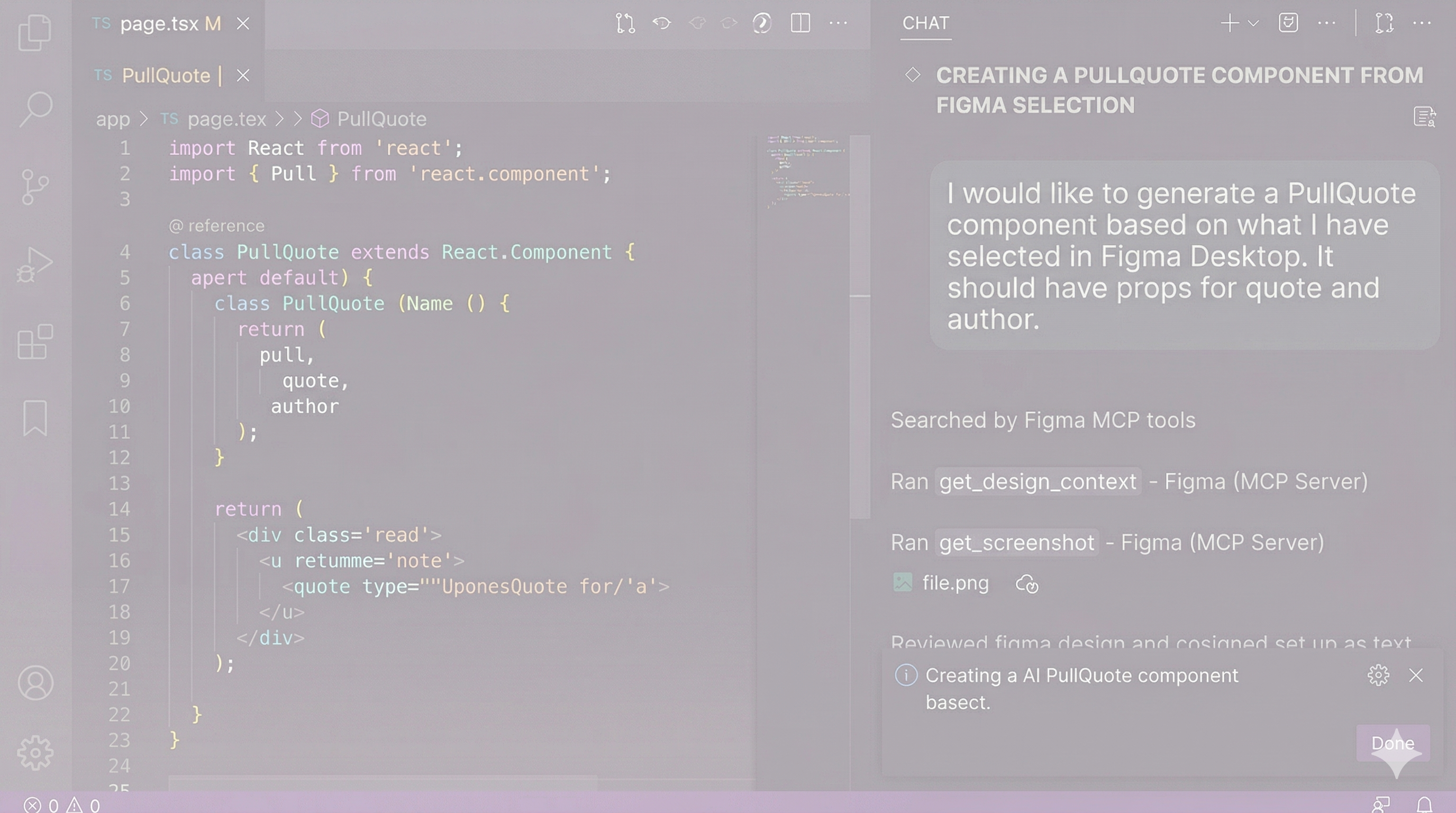
With Figma's Dev Mode MCP server, you select a component or frame in the Figma desktop app, and your AI agent (Claude, Gemini CLI or Codex in VS Code, Cursor, or GitHub Copilot) automatically receives the full design context: spacing values, flex layout properties, color tokens, typography, and a screenshot of what you've selected. You're no longer feeding the agent a vague description or a flat image. It's seeing the same structured data a developer would inspect manually in Dev Mode.
The practical result: AI generates a much better first draft of your component, with real CSS values and layout logic already baked in. You still refine it. You still review it before it goes anywhere near a pull request. But the starting point is substantially further along than it was six months ago.
How We're Using Figma MCP on Real Projects
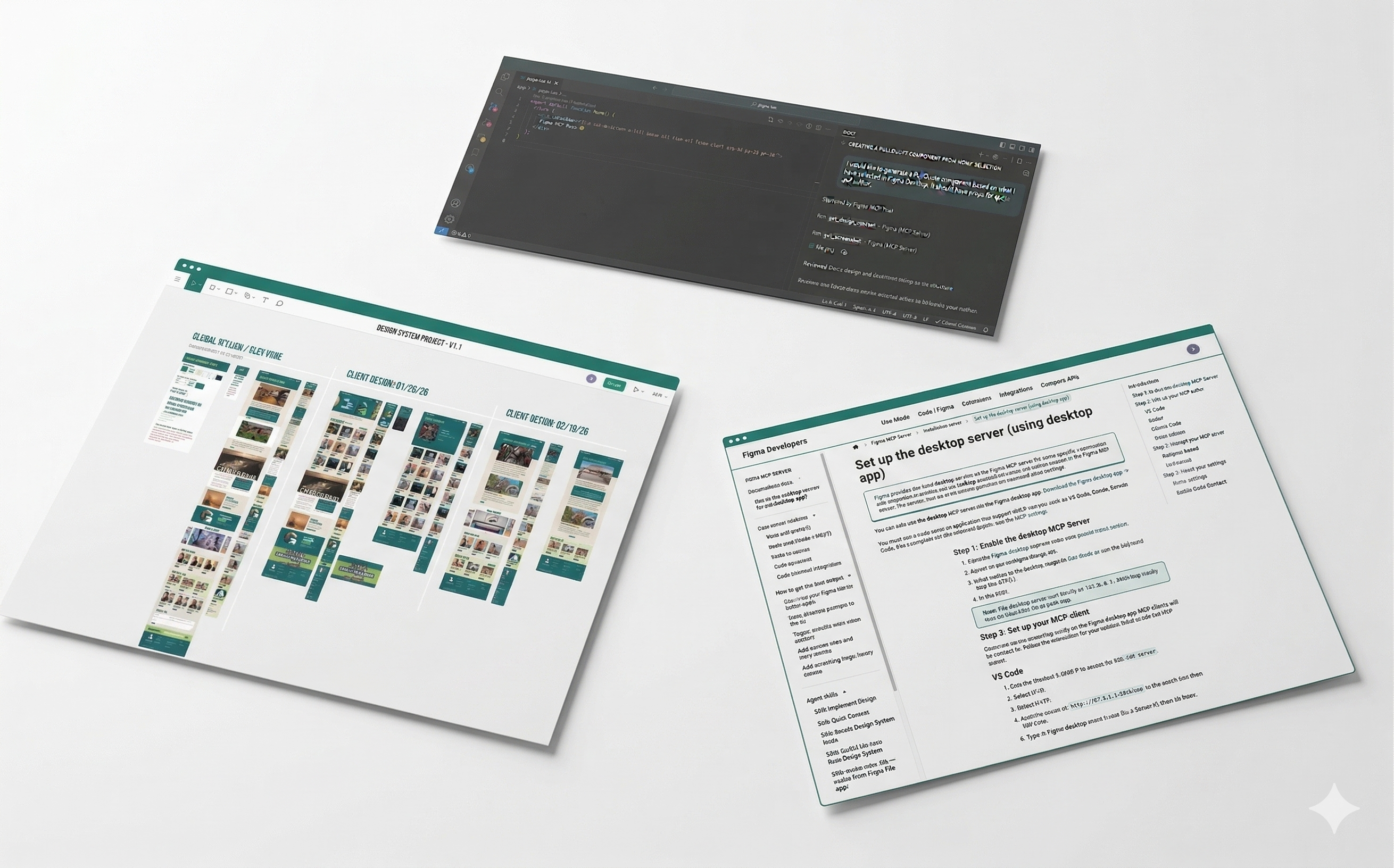
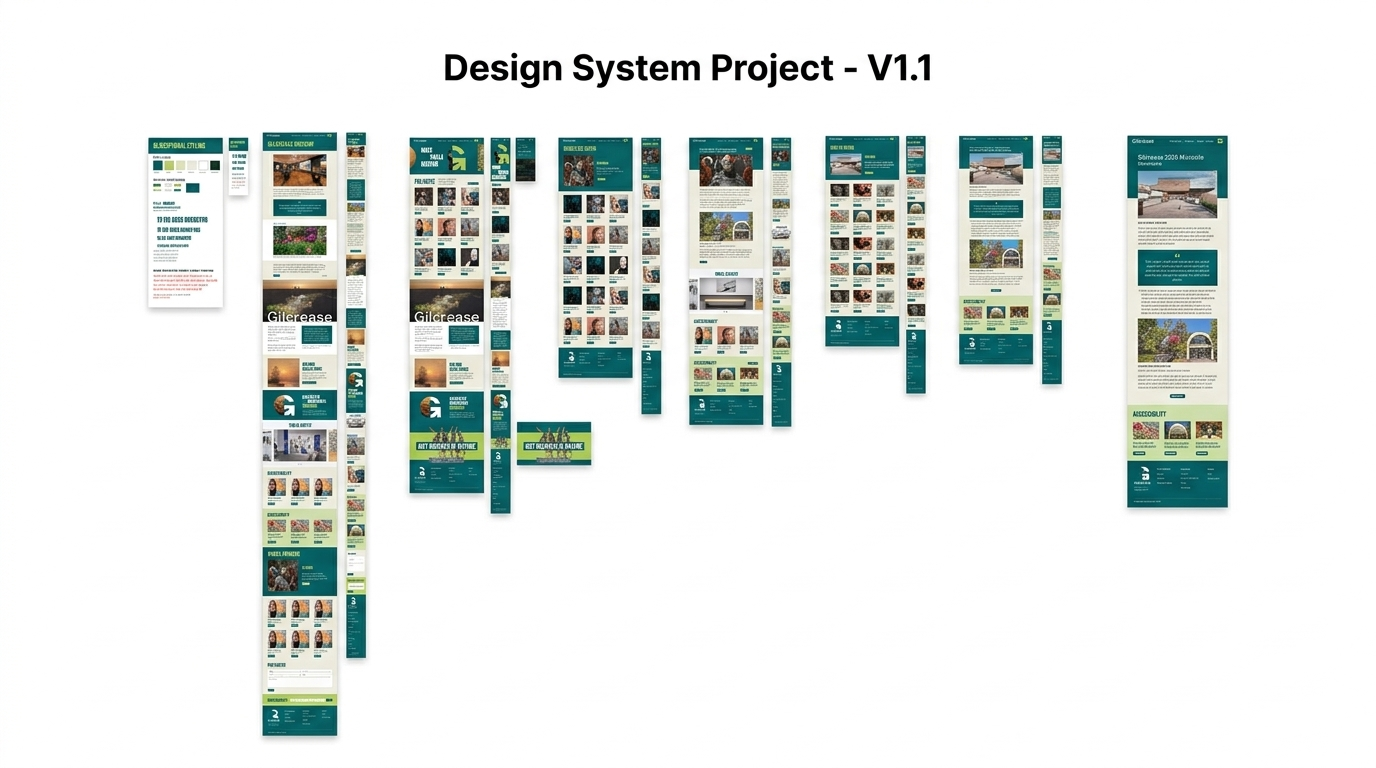
Our team recently ran a live demo walking through the setup and workflow on an active project: the Gilcrease Museum microsite, which is introducing their new brand identity and will serve as the design system foundation for a full site redesign. The Gilcrease project is a good example of how design systems built for one engagement can carry forward into larger work. Getting those foundational components right, accurately and efficiently, matters.
The design-to-code workflow is straightforward once configured. A developer selects a component in Figma Desktop (a pull quote, a hero block, a modal), prompts their AI agent to generate a React component based on what's selected, and gets starter code that reflects the actual design specs. From there, developers refine the output, handle edge cases, and ensure the code integrates cleanly with the broader codebase.
A few things make the output significantly better:
- Use Auto Layout in Figma. Components built with Figma's Auto Layout produce much cleaner code output because the responsive intent is already captured in the design data the agent receives.
- Name your layers semantically. A layer named CardContainer gives the agent something to work with. Group 45 does not.
- Have a global CSS or style sheet in place. If your design tokens are named and mapped, the agent can reference them. If you're working from raw hex codes, you'll spend more time cleaning up afterward.
- Guide the agent on architecture. For complex components (like advanced search passing query parameters to a results page), it helps to give the agent guidance on component composition and design patterns in your prompt (or even better, from an AGENTS.md file) Otherwise it tends toward solutions that are functional but tightly coupled or inconsistent with the rest of the codebase.
Figma MCP Limitations to Know Before You Start
To be clear, this isn't a "generate the whole site" button. At Urban Insight, we've found that the output requires careful review before use. Common issues include image tags that should be framework-specific (Next.js <Image> vs. generic <img>), missing semantic HTML elements like <blockquote>, and limited accessibility attributes unless explicitly prompted. SVG handling with clipping masks can also require manual cleanup.
None of this is disqualifying. It's a realistic picture of where the tooling is today. The value is in getting a solid, design-accurate foundation in a fraction of the time it would take to build from scratch, then applying judgment and polish from there.
The Responsive Design Opportunity
One area we're actively exploring is how more sophisticated Figma component structures (specifically flexible variants that respond to frame width) translate through MCP. When a component is built with properly defined constraints and max-width breakpoints, our theory is that the agent can interpret responsive behavior directly from the design, rather than requiring a separate mobile prompt and reconciliation pass.
This is still emerging practice on both the design and development sides, and it requires investment in how Figma files are structured. But the potential payoff is meaningful. Instead of designing desktop and mobile separately and generating code twice, you get a single component generation that handles breakpoints correctly from the start. We're testing this on current projects and expect it to become a more standard part of our process as the tooling matures.
Why This Matters for Cultural Institutions and Nonprofits
For cultural institutions and nonprofits working with constrained budgets and ambitious redesigns, efficiency in front-end development directly affects what's possible within a project scope. If we can reduce the time to produce accurate first-draft components and use that savings for accessibility review, performance optimization, and content strategy, that's a meaningful shift in value delivered.
We've seen this dynamic play out on past engagements. The Broad Museum website and mobile app required meticulous attention to design fidelity across devices. The LACMA website and collections platform demanded that complex component structures remain consistent across a large, evolving content system. And for the National WWI Museum, front-end accuracy was central to an award-winning result. These projects illustrate exactly the kind of work where faster, more precise component generation creates real downstream benefits.
We're currently using Figma MCP on active engagements including the Gilcrease microsite, and we'll be expanding its use across other projects as our team builds more consistent best practices around it. If you're thinking about how AI fits into your next website project, our museum technology strategy article is a useful companion read on how we think about integrating new tools into a coherent digital approach.
If you're working on a website redesign or want to understand how AI is actually changing the development process, reach out to start a conversation.
Frequently Asked Questions About Figma MCP
Does Figma MCP work with VS Code? Yes. Figma MCP integrates with VS Code, Cursor, Windsurf, and Claude Code. Setup requires the Figma desktop app and a Dev or Full seat on a paid Figma plan. See Figma's setup documentation for step-by-step instructions.
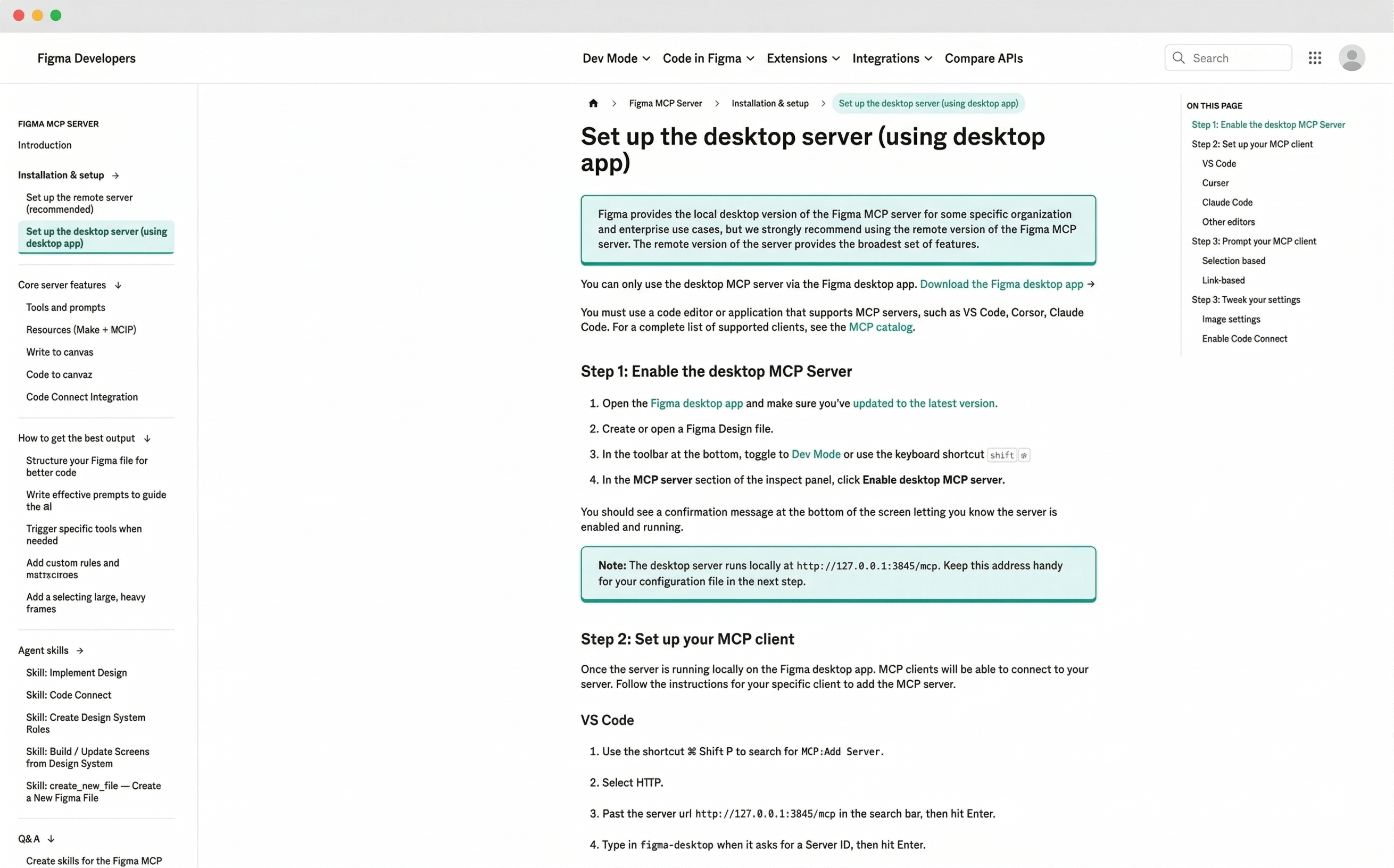
Does Figma MCP require a paid Figma plan? Yes. The Dev Mode MCP server requires a Dev or Full seat on a Professional, Organization, or Enterprise Figma plan. It is not available on the free Starter plan.
What AI coding tools work with Figma MCP? Figma MCP works with any MCP-compatible AI coding agent, including Claude (Anthropic), GitHub Copilot in VS Code, Cursor, and Windsurf.
Does Figma MCP generate production-ready code? Not quite. It generates a strong, design-accurate first draft that significantly reduces manual front-end work during design handoff. Developers still need to review output for semantic HTML, accessibility attributes, framework-specific tags, and architectural consistency before it's production-ready.
What design practices improve Figma MCP output? Using Auto Layout, naming layers semantically, defining design tokens, and structuring components with responsive constraints all lead to better code output. The cleaner and more systematic your Figma file, the more useful the generated code will be.
Related Reading:
- Museum Technology Strategy: Why Unified Digital Integration Is the Future
- The Best Museum Ticketing Software to Increase Sales
- Urban Insight's Work with Cultural Institutions
External Resources:
Article adapted from an internal presentation given by Joe Bayer, Urban Insight, Senior Web Engineer.
